Complete Guide to Volume Shader BM Test
Volume Shader BM Test: A practical guide to running the browser benchmark, reading sampled results and exporting a report.
What is Volume Shader BM Test?
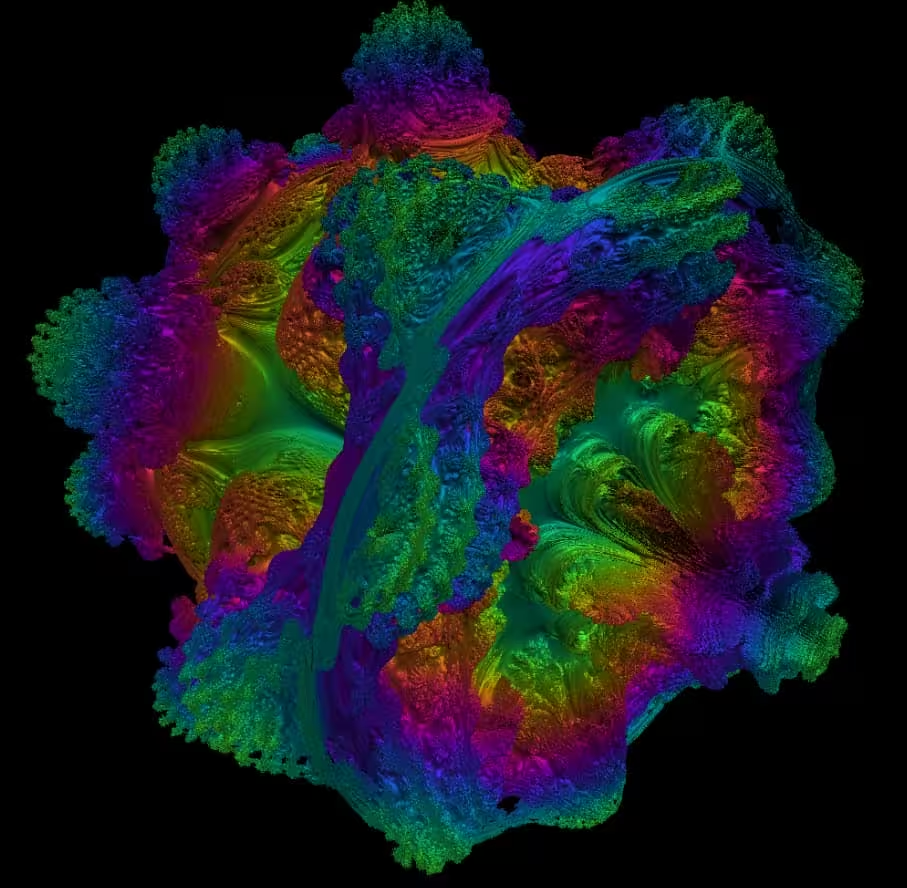
Volume Shader BM Test is a free browser benchmark that renders a volume shader with WebGL 1.0 at a fixed 1024 × 1024 resolution.
No installation or account is required. Browser, operating system and available GPU information are read in your browser to describe the test environment.
This measures one browser rendering workload. It does not diagnose hardware faults, read GPU temperatures or predict frame rates in games and professional applications.
How Does the Volume Shader BM Tool Work?
Start runs the default shader at 1024 × 1024; Stop ends the run. Starting again clears the metrics, and Restart resets the benchmark. A hidden browser tab stops the test.
The display shows current, average, minimum and maximum sampled FPS, measured frames, elapsed test time and milliseconds per frame.
- FPS (current) / FPS (avg)
- FPS min / FPS max
- CSV / JSON
- Shader Kernel Editor
Benchmark workflow and controls
Start runs the default shader at 1024 × 1024; Stop ends the run. Starting again clears the metrics, and Restart resets the benchmark. A hidden browser tab stops the test.
FPS is sampled over windows of about 500 ms. Minimum and maximum refer to these windows; average FPS uses total measured frames and elapsed time. These are not individual frame traces or 1% low values.
After measuring, use CSV or JSON to download a result snapshot, including browser, operating system, GPU information and metrics. The download is generated locally.
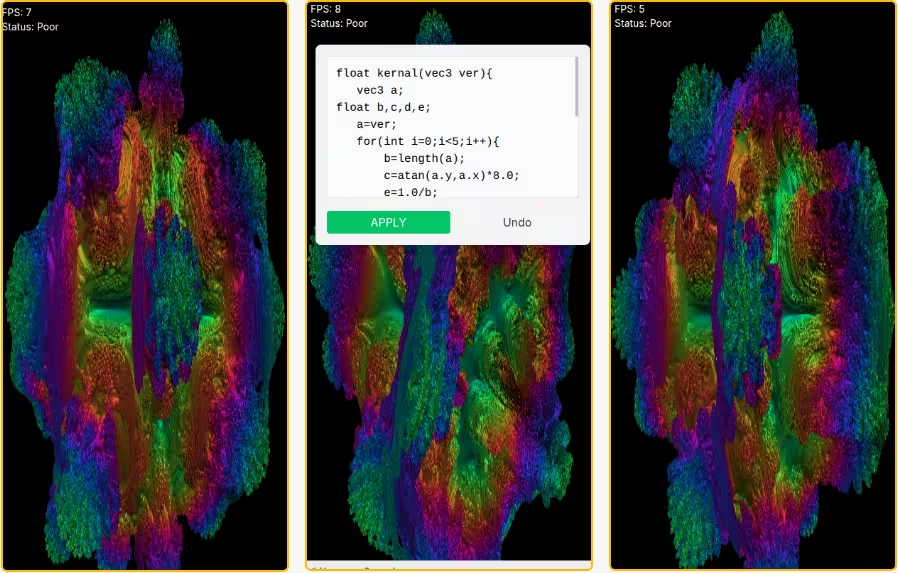
The GLSL editor changes the kernel only when Apply is selected. Reset restores the default shader. Compilation errors appear on the page; this screen has no resolution, complexity-level or duration settings.
Benefits of Using Volume Shader BM Test
Performance Metrics
The display shows current, average, minimum and maximum sampled FPS, measured frames, elapsed test time and milliseconds per frame.
Cross-Platform Comparison
For comparisons, keep the shader, resolution, browser, refresh-rate limit, power settings and background load similar. Results from different environments are not interchangeable hardware scores.
Shader Kernel Editor
The GLSL editor changes the kernel only when Apply is selected. Reset restores the default shader. Compilation errors appear on the page; this screen has no resolution, complexity-level or duration settings.
CSV / JSON
After measuring, use CSV or JSON to download a result snapshot, including browser, operating system, GPU information and metrics. The download is generated locally.
No Installation Required
No installation or account is required. Browser, operating system and available GPU information are read in your browser to describe the test environment.
Technical Details
This measures one browser rendering workload. It does not diagnose hardware faults, read GPU temperatures or predict frame rates in games and professional applications.
Understanding GPU Performance Metrics
The display shows current, average, minimum and maximum sampled FPS, measured frames, elapsed test time and milliseconds per frame.
Milliseconds per frame is calculated from the elapsed time and frame count of a sampling window. It describes that window's average, not the duration of every individual frame.
FPS is sampled over windows of about 500 ms. Minimum and maximum refer to these windows; average FPS uses total measured frames and elapsed time. These are not individual frame traces or 1% low values.
Who Should Use This Free Online Benchmark?
A browser with working WebGL is required. Driver support, hardware acceleration and browser restrictions can affect availability and results; if WebGL is unavailable, the page displays a message.
You can try the test on WebGL-capable phones and tablets. The canvas supports pointer or touch dragging. Device and browser limits still affect the result.
This measures one browser rendering workload. It does not diagnose hardware faults, read GPU temperatures or predict frame rates in games and professional applications.
For comparisons, keep the shader, resolution, browser, refresh-rate limit, power settings and background load similar. Results from different environments are not interchangeable hardware scores.
Tips for Accurate Benchmark Results
To get the most accurate results from your volume shader bm test, follow these best practices. First, close all unnecessary applications and browser tabs before running the benchmark. Background processes can consume GPU resources and affect your scores.
Ensure your graphics drivers are up to date. Driver updates often include performance optimizations and bug fixes that can significantly impact benchmark results. Both NVIDIA and AMD regularly release driver updates with WebGL improvements.
Allow your system to reach a stable temperature before benchmarking. Running the test immediately after intensive gaming or work sessions may show lower scores due to thermal throttling. Let your GPU cool down for a few minutes for consistent measurements.
Run the benchmark multiple times and average the results. Single runs can be affected by temporary system conditions. Three to five runs provide a reliable baseline for your hardware's performance with the free online GPU test.